

Overview
Bitscope shows what your audio is actually made of. For two channels at a time, it displays which of 64 bits are doing work, the effective word length that results, every sample clip, every intersample peak, and the highest true peak in dBTP.
It answers questions a level meter can't: is this "24-bit" file really 24-bit, or 16-bit padded with zeros? Is the 64-bit chain really 64-bit end to end, or is one stage quietly truncating? Does this master go over full scale between the samples, once a DAC reconstructs it?
Bitscope is analysis only. It never writes to the audio buffer: every channel passes through bit for bit, in 32- and 64-bit hosts alike, on any bus from 2 to 32 channels. It adds no latency, so you can leave it anywhere in a chain.
Quick Start
- Unzip and copy
BitScope.vst3toC:\Program Files\Common Files\VST3\on Windows, or theBitScope.vst3folder to~/.vst3/on Linux (or your host's VST3 folder), then rescan plugins. - Insert Bitscope after the stage you want to check — or last in the chain to see what reaches the output.
- Play audio. Read effective in the readout strip for the word length in use, and true peak for the highest reconstructed peak.
- On a multichannel bus, choose which two channels to analyse with L Source and R Source at the bottom.
- Press ↻ reset to start a fresh measurement.
The Interface
From top to bottom:
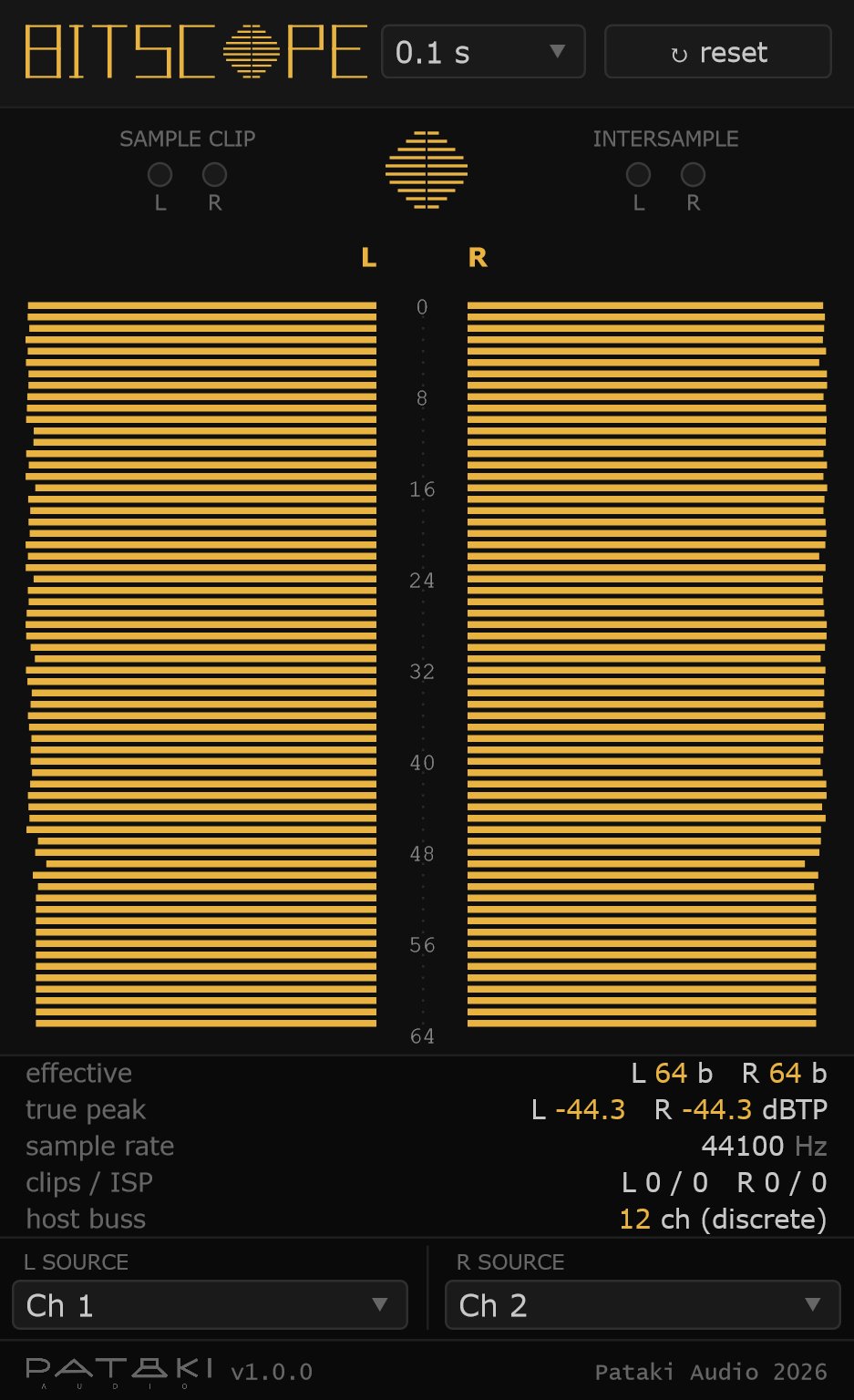
The Window selector (0.1 s, 1.0 s or ∞) sets how much recent audio the bit tree and effective word length describe — see §06. ↻ reset clears every counter and peak.
Four lights. Sample clip lights when a sample reaches full scale; intersample lights when the reconstructed signal goes over full scale between samples. Each light stays fully on for 1.5 s after the latest event, then fades out over 0.5 s. The totals are in the readout strip.
One row per bit, finest at the top, sign bit at the bottom. The left channel's bars grow to the left of the centre column, the right channel's to the right, so the two read as a mirror. The centre column numbers the rows in steps of eight, from 0 at the top to 64 at the bottom. How to read it is in §04.
effective — the word length in use per channel, in bits.
true peak — the highest reconstructed peak per channel, in dBTP; red above 0 dBTP.
sample rate — the host's sample rate.
clips / ISP — per channel, sample clips / intersample overs since the last reset.
host buss — how many channels the host is running Bitscope on, and the layout name (Stereo, 5.0, 5.1, 7.0, 7.1, or discrete). A red ⚠ means a source selector points beyond the bus.
Which two channels of the host bus to analyse. Every channel passes through regardless; only these two are measured.
The footer shows the version on the left. The window is a fixed 380 × 620 pixels and refreshes 30 times a second.
Reading the Bit Tree
Bitscope places every sample on one common 64-bit grid: full scale (±1.0) maps to the full range of a signed 64-bit integer. The bottom row is the sign bit; each row above it is half the size of the one below; the top row is the finest step the grid has. A 16-bit file occupies the bottom 16 rows, a 24-bit file the bottom 24, whatever format it arrives in.
Each row is drawn in one of three ways:
- Amber bar — the bit changes. Its length shows how active it is: longest when the bit is 1 half the time, shorter as it leans toward always 0 or always 1.
- Dim line — unused: the bit was 0 for every sample in the window.
- Red bar — stuck: the bit was 1 for every sample in the window.
Effective word length counts down from the top: 64 minus the number of unused rows at the top of the tree before the first one that is used. Stuck rows count as used.
What typical sources look like
- 16-bit source
- Top 48 rows dim, bottom 16 active — effective 16 b
- 24-bit source
- Top 40 rows dim, bottom 24 active — effective 24 b
- Float / processed
- Varies with level, usually well above 24 b — see below
- Digital silence
- Every row dim — effective 0 b
- Constant signal (DC)
- The rows that are always 1 red, the rest dim — e.g. +0.5 lights one red row and reads 2 b
- Never positive
- Sign bit (bottom row) red
Floating-point audio reads higher than its format suggests, and that is correct. A 32-bit float sample carries 24 significant bits, but they sit wherever the sample's level puts them. Quiet samples land lower on the fixed grid than loud ones, so across a window of music a float stream uses many more than 24 rows. Any processing in floating point — gain, EQ, dither — has the same effect.
That is what makes the tree useful for checking a chain. A file that claims 24 bits but shows exactly 16 active rows is 16-bit audio padded with zeros. A float or 64-bit chain that suddenly reads exactly 16 or 24 b contains a stage that converts to fixed point. A volume control at unity that turns 24 b into 30-odd bits is not running at unity.
Clips & True Peak
Every sample with a magnitude of 1.0 or more — that is, at or over 0 dBFS — at the host's sample rate.
A DAC reconstructs a continuous waveform from the samples, and that waveform can go over full scale between two samples that are both below it. Bitscope oversamples each analysed channel and counts every oversampled point above 1.0. Because the count is per oversampled point, one overshoot can add several counts, and sample clips above full scale are counted here too.
The highest oversampled magnitude, shown in dBTP. The display holds the peak and lets it fall slowly, at 1.7 dB per second, so a single event stays readable. Reset clears it.
Oversampling follows the approach of ITU-R BS.1770, which asks for 4× at 48 kHz:
- Up to 48 kHz
- 4× oversampling
- Up to 96 kHz
- 2× oversampling
- Above 96 kHz
- None — the sample rate itself already resolves the waveform; true peak equals sample peak
The oversampling filters are half-band equiripple FIRs. The result is a true-peak monitor, not a certified BS.1770 loudness meter.
Window & Reset
The Window sets how much recent audio the bit tree and effective word length describe:
- 0.1 s — reacts almost instantly; good for watching how the word length follows the music.
- 1.0 s — the default; steady enough to read, still follows changes.
- ∞ — everything since the last reset. Use it to check a whole file or a whole session: a bit that was used even once stays visible.
The analysis buffer is rounded up to a power of two, so the actual spans are a little longer than the labels: about 0.17 s and 1.37 s at 48 / 96 / 192 kHz, and about 0.19 s and 1.49 s at 44.1 / 88.2 / 176.4 kHz.
Changing the Window restarts the bit analysis and the sample-clip count. True peak and the intersample count carry on.
↻ reset clears everything: the bit analysis, both clip counts and the true peak, for both channels. After loading a session, Reset is always off.
Multichannel & JRiver
Bitscope runs on whatever bus the host gives it, from 2 to 32 channels, with input and output the same width. Every channel passes through unchanged; the two chosen with L Source and R Source are analysed. Since v1.0.1 Bitscope's default layout is stereo, and a host that sets up a wider bus — such as JRiver's 5.1, 7.1 or 12-channel output — gets every channel. This has been checked at 2, 6, 8, 12, 16, 24 and 32 channels.
In JRiver Media Center, add Bitscope as a VST plug-in in DSP Studio. It runs at JRiver's output channel count; the host buss row shows it. To check a centre or surround channel, point a source selector at it — on a 7.1 bus in the usual WAVE channel order, for example, channel 3 is the centre.
If a selector points beyond the bus — say Ch 10 on an 8-channel bus — Bitscope analyses the last channel instead. The selector then reads Ch 10 → Ch 8, and the host buss row shows a red ⚠.
Bitscope works at 32 and 64 bits. When the host processes in 64-bit, Bitscope analyses the 64-bit samples directly.
Specifications
- Plugin format
- VST3
- OS support
- Windows 10+ (64-bit); Linux x64 with glibc 2.35+ (Ubuntu 22.04+, Debian 12+, Fedora 36+); Linux ARM64 with glibc 2.28+ (Raspberry Pi OS 64-bit on Pi 4/5, Ubuntu 20.04+ arm64)
- Channels
- 2 – 32, input = output; default stereo; two channels analysed
- Audio path
- Bit-exact pass-through in 32- and 64-bit; nothing is written to the buffer
- Latency
- 0 samples
- Sample rates
- 44.1 – 192 kHz; other rates accepted
- Bit analysis
- 64-bit grid, LSB to sign bit; windows 0.1 s · 1.0 s · ∞
- True peak
- 4× ≤ 48 kHz · 2× ≤ 96 kHz · 1× above; hold with 1.7 dB/s fall
- Counters
- Sample clips and intersample overs per channel, 64-bit
- Precision
- All analysis in 64-bit double / integer
- Display
- 380 × 620 px, 30 Hz refresh
- Parameters
- Source L, Source R, Window, Reset
- Bundle size
- ~6 MB (Windows) · ~7 MB (Linux)
- License
- Donationware — pay what you want, including €0
FAQ & Troubleshooting
My chain is 32-bit float but effective reads 38 b. Is that wrong?
No. Float stores 24 significant bits relative to each sample's own level, so quiet samples reach finer rows of the fixed 64-bit grid than loud ones (§04). Readings well above 24 b are normal for any float or processed signal.
Effective reads 0 b.
The analysed channel is digital silence for the whole window. Check that audio is playing and that the source selectors point at channels that carry signal — on a wide bus, the first two channels are not always the ones in use.
The intersample count runs into the thousands.
It counts every oversampled point above full scale, so one overshoot can add several counts, and a loud, clipped master can add thousands. Read it as "is it zero or not". The true-peak value tells you how far over it went.
Is the true-peak value BS.1770 compliant?
It follows the same approach — 4× oversampling at 44.1 and 48 kHz — but uses its own oversampling filters and is not certified. Treat it as an accurate monitor of whether and by how much a signal overshoots; for delivery specs that require a certified meter, use one.
Does Bitscope change my audio?
Never. It does not write to the audio buffer at all; every channel leaves exactly as it arrived, in 32- and 64-bit hosts. This is checked by automated tests on every build, including pathological values such as NaN, infinity and denormals.
Will my sessions from v1.0 load in v1.0.1?
Yes. Source selections and the Window load unchanged. The only difference is the default layout, which matters only to a host that never sets up its own bus.
How do I install it on Linux?
Copy the BitScope.vst3 folder to ~/.vst3/ (or /usr/lib/vst3/ for all users), then rescan plugins in your host. Use the x64 download on a PC (glibc 2.35 or newer — Ubuntu 22.04+, Debian 12+, Fedora 36+ or a current Arch) and the ARM64 download on 64-bit ARM Linux such as a Raspberry Pi 4 or 5 running 64-bit Raspberry Pi OS (glibc 2.28 or newer). Neither needs a separate C++ runtime. The readouts use your system's monospace font.
Design Notes
Bitscope exists because the bit-scope everyone used to reach for — Stillwell's Bitter — no longer loads reliably in JRiver Media Center, which is where a playback chain most needs checking. Bitscope rebuilds the idea for modern hosts: double-precision analysis throughout, any bus width JRiver can produce, and a layout you can read at a glance.
The single hard rule is pass-through. A measurement tool that alters what it measures is worse than none, so Bitscope never writes to the audio buffer — not a gain of 1.0, not a copy, nothing. The analysis reads the two chosen channels into its own scratch buffers, and the display runs on a separate thread, fed through a lock-free queue, so the audio thread never waits for the screen.
The tree is drawn with the finest bit at the top so the eye meets the empty rows first and walks down into the signal: where the dim lines stop is the word length, without reading a number. Stuck bits are red because they are the thing worth noticing: a constant signal, a signal that never goes positive, or a broken stage that forces a bit to 1.